Comparison
BustaCode vs VS Code with GitHub Copilot
The editor you know, with every agent built in.
BustaCode is built on Code - OSS, the same foundation as Visual Studio Code — so the editor, terminal, debugger and shortcuts feel like home from minute one.
What changes is everything on top: Cursor, Codex and the OpenAI API in one BustaAI chat, as many folders as you want in one window, and Docker, SSH, Git worktrees and MCP ready without assembling extensions.
Why BustaCode
Everything you juggle today, in one window.
One IDE. Every agent. One workspace.
-
Every agent in one IDE
Cursor (official CLI over ACP), Codex (app-server) and the OpenAI API in a single BustaAI chat with Ask, Plan and Agent modes. Switch agents, not apps.
-
As many folders as you want
Open as many folders and projects as you need in a single BustaCode window. No more 20 separate windows to keep track of.
-
One workspace, two modes
Full IDE or the agent-focused BustaAgents view — same window, same projects, and you keep the active conversation.
-
Git & worktrees built in
Diffs, branches, history, worktrees and pull-request workflows, with parallel agent conversations in tabs.
-
Docker & SSH out of the box
Explore containers and logs, and inspect Linux hosts over SSH — CPU, memory, services and ports — with no extra extensions.
-
MCP with access controls
Project-level MCP integrations through a local gateway, plus project memory and Busta Graph for code relationships.
BustaCode vs VS Code, side by side
| Aspect | BustaCode | VS Code + GitHub Copilot | Sources |
|---|---|---|---|
| AI agents | Cursor (official CLI over ACP), Codex (app-server) and the OpenAI API in one BustaAI chat; Ask / Plan / Agent modes. (BustaCode advantage) | Agents with the Copilot harness or others such as Anthropic Claude or OpenAI Codex. | [1][3] |
| Folders & projects | As many folders and projects as you want in a single BustaCode window. (BustaCode advantage) | Multi-root workspaces: add folders with File > Add Folder to Workspace and save them as a .code-workspace file. | [1][4] |
| Docker | Built-in panel to explore containers and logs. (BustaCode advantage) | Via the Container Tools extension. | [1][11] |
| Linux hosts over SSH | Built-in DevOps panel: CPU, memory, services and network ports of your hosts. (BustaCode advantage) | Via the Remote - SSH extension, to open remote folders. | [1][10] |
| Agent-focused view | BustaAgents mode: the same window, projects and conversation without the IDE layout. | Agents window; sessions can continue between it and the Chat view. | [1][3] |
| Git & worktrees | Diffs, changes, branches, history, worktrees and pull-request workflows. | Built-in source control with branches, stashes and worktrees. | [1][8] |
| MCP | Project-level MCP through a local gateway with access controls. | Add and manage MCP servers for agents. | [1][9] |
| Foundation | Code - OSS (MIT): familiar editor, terminal, debugger and keyboard model. | Microsoft’s distribution of Code - OSS. | [1][6] |
Same base. Much more on top.
Because both are built on Code - OSS, moving to BustaCode doesn’t mean relearning your editor: the editor, terminal, debugger and keyboard model are the ones you already know.
The difference is that BustaCode arrives with the rest of your toolbox: agents from Cursor, Codex and OpenAI, project memory, parallel conversations, Docker, DevOps over SSH and Busta Graph — all in the same window.
Learn more about BustaAI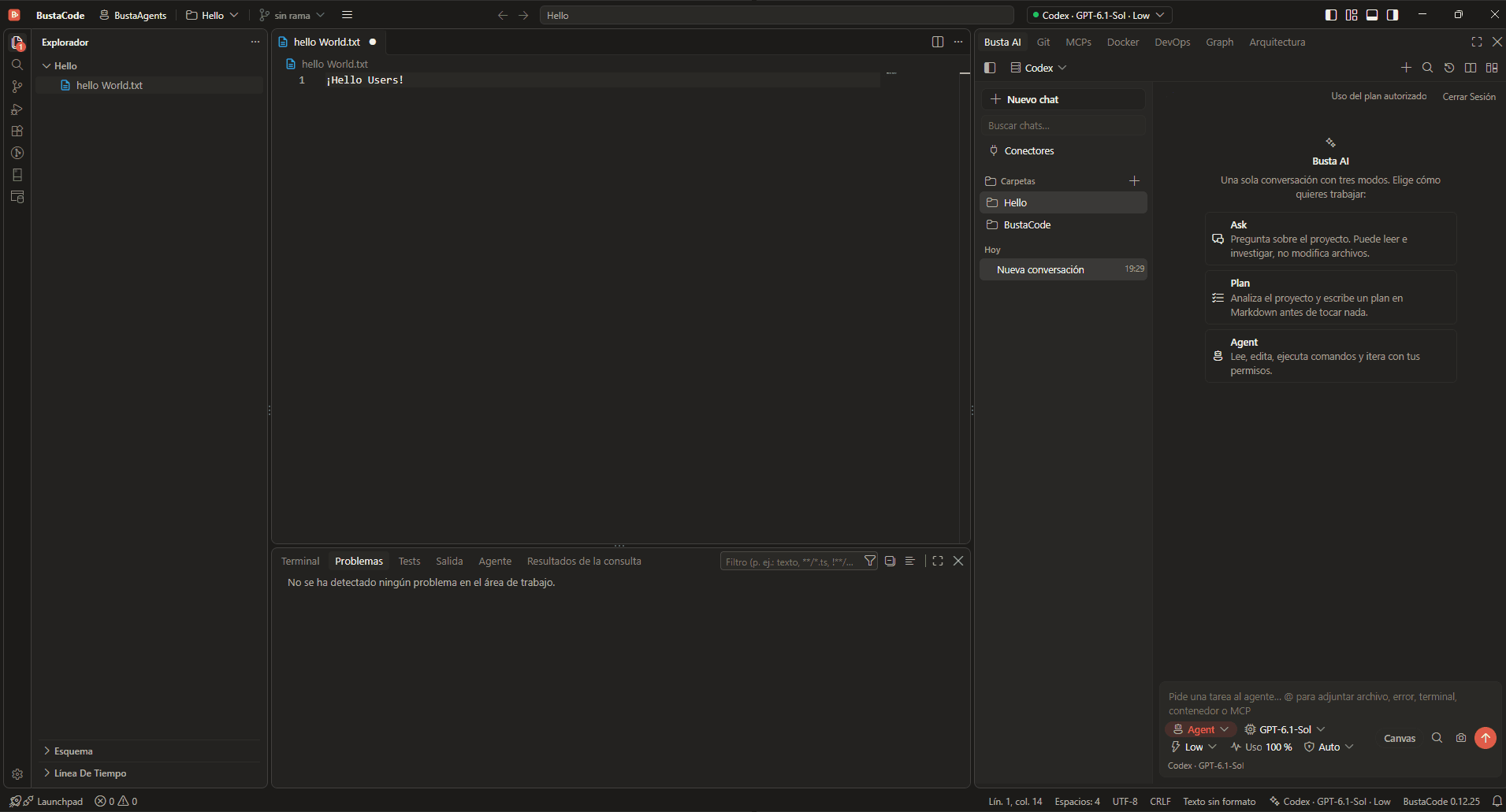
Your editor, upgraded.
- Cursor and Codex agents in one chat, next to your code.
- Every project in one window, not one window per folder.
- Docker, SSH, Git worktrees and MCP ready from the first launch.
To be fair: If you are fully standardized on GitHub Copilot, need macOS or Linux, or depend on extensions that only exist on the Visual Studio Marketplace, VS Code is the natural fit. BustaCode uses Open VSX and ships for Windows x64.
Frequently asked questions
Is BustaCode just VS Code?
No. Both are built on Code - OSS, but BustaCode is an independent IDE with its own AI layer (BustaAI with Cursor, Codex and the OpenAI API), the BustaAgents mode and built-in Docker, DevOps and Busta Graph panels. It uses Open VSX and is not affiliated with Microsoft.
Can I open multiple folders in one window?
Yes — as many folders and projects as you want in a single BustaCode window, with every agent and the Git, Docker and SSH panels right there. In VS Code, multiple folders in one window are handled with multi-root workspaces.
Can I use Codex in both?
Yes. BustaCode integrates Codex through its app-server, and the VS Code documentation lists OpenAI Codex among its agent harnesses. Only BustaCode also runs Cursor’s agent in the same chat.
Can I use GitHub Copilot in BustaCode?
GitHub Copilot is not among BustaAI’s documented providers. BustaAI works with Cursor (official CLI and ACP), Codex (app-server) and the OpenAI API.
Will my Marketplace extensions work in BustaCode?
Extensions published on Open VSX work, and you can install supported VSIX files manually. BustaCode does not use the Microsoft Visual Studio Marketplace, so some proprietary extensions may be unavailable.
Which operating systems are supported?
The published BustaCode installer is for Windows x64. VS Code supports Windows, macOS and Linux.
Related features
All features- BustaAI Unified chat with Ask, Plan and Agent modes for Cursor, Codex and the OpenAI API, plus project memory and parallel conversations.
- BustaAgents An agent-focused view of the same window: chat, track work and review changes, then return to the editor without losing the conversation.
- MCP, tools & extensions Project-level MCP through a local gateway with access controls, tool approvals, and Open VSX / VSIX extensions.
- Git & worktrees Diffs, changes, branches, history, worktrees and pull-request workflows, in both the IDE and BustaAgents.
- Docker, DevOps & SSH Containers and logs, plus Linux hosts over SSH: CPU, memory, services and network ports.
- Busta Graph & Architecture Code relationships, dependencies, API routes, models, DAOs and tables, plus architecture diagrams made with Archify.
Get started
Try it in BustaCode
Free to download for Windows x64. Provider accounts, API keys, subscriptions and usage limits are separate.
v0.12.27 · Windows x64 · 188 MB installer · Changelog
- 1
Download the latest Windows installer.
- 2
Install BustaCode and open a project.
- 3
Open BustaAI, connect a supported provider and switch between BustaCode and BustaAgents.