Comparison
BustaCode vs Cursor
Keep Cursor’s agent. Get every other agent too.
Cursor gives you Cursor’s agent. BustaCode gives you Cursor’s agent — through Cursor’s official CLI and ACP — plus Codex and the OpenAI API, side by side in one BustaAI chat.
Around them: as many folders and projects as you want in a single window, Git and worktrees, Docker, SSH host inspection, an MCP gateway and Busta Graph. One IDE. Every agent. One workspace.
Why BustaCode
Everything you juggle today, in one window.
One IDE. Every agent. One workspace.
-
Every agent in one IDE
Cursor (official CLI over ACP), Codex (app-server) and the OpenAI API in a single BustaAI chat with Ask, Plan and Agent modes. Switch agents, not apps.
-
As many folders as you want
Open as many folders and projects as you need in a single BustaCode window. No more 20 separate windows to keep track of.
-
One workspace, two modes
Full IDE or the agent-focused BustaAgents view — same window, same projects, and you keep the active conversation.
-
Git & worktrees built in
Diffs, branches, history, worktrees and pull-request workflows, with parallel agent conversations in tabs.
-
Docker & SSH out of the box
Explore containers and logs, and inspect Linux hosts over SSH — CPU, memory, services and ports — with no extra extensions.
-
MCP with access controls
Project-level MCP integrations through a local gateway, plus project memory and Busta Graph for code relationships.
BustaCode vs Cursor, side by side
| Aspect | BustaCode | Cursor | Sources |
|---|---|---|---|
| AI agents | Cursor (official CLI over ACP), Codex (app-server) and the OpenAI API in one chat. Each provider runs on its own engine. (BustaCode advantage) | Cursor’s own agent, with models from several providers and Cursor’s Composer models. | [1][3] |
| Folders & projects | As many folders and projects as you want in a single BustaCode window. (BustaCode advantage) | Multi-root workspaces; in the Agents Window, one agent session can target a reusable workspace made of multiple folders. | [1][6][5] |
| IDE & agent view | Full IDE and BustaAgents are two views of the same window: same projects, same conversation. (BustaCode advantage) | Classic editor plus a separate Agents Window; you can switch between them or keep both open. | [1][5] |
| Docker & DevOps | Built-in panels: containers and logs, plus Linux hosts over SSH with CPU, memory, services and ports. (BustaCode advantage) | Via Open VSX extensions (for example Container Tools); remote SSH environments for agents in the Agents Window. | [1][10][11][5] |
| Working modes | Ask / Plan / Agent, shared by every connected agent. | Agent and Plan Mode. | [1][3] |
| Parallel work & worktrees | Parallel agent conversations in tabs; Git diffs, branches, history, worktrees and pull-request workflows. | Parallel agents and isolated Git worktrees in the Agents Window. | [1][7][5] |
| MCP | Project-level MCP through a local gateway with access controls. | MCP servers over stdio, SSE or Streamable HTTP. | [1][8] |
| Extensions | Open VSX registry and manual VSIX installation. | Open VSX via Cursor’s marketplace proxy. | [2][10] |
Your Cursor account, inside BustaCode
Cursor documents an ACP mode for its CLI (agent acp) for custom clients and integrations. BustaAI is one of those clients: it talks to Cursor through its official CLI and ACP, with Cursor’s own sign-in.
So you don’t give anything up: keep Cursor’s agent, add Codex next to it, and work with the Git, worktree, Docker, DevOps, MCP and Busta Graph panels right there in the same window.
Learn more about BustaAI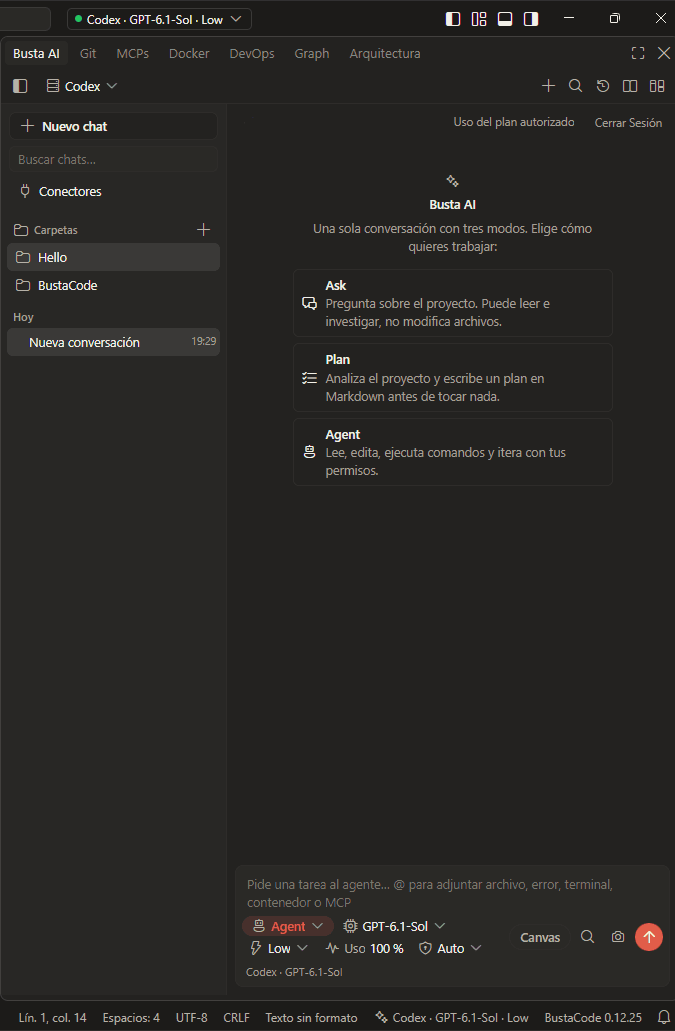
Bring Cursor. Add everything else.
- Cursor and Codex side by side, instead of separate apps.
- Every project in one window instead of one window per folder.
- Docker, SSH, Git worktrees and MCP without hunting for extensions.
To be fair: If you only ever use Cursor’s agent, need macOS or Linux, or rely on Cursor’s cloud agents, Cursor on its own may be all you need. BustaCode currently ships for Windows x64.
Frequently asked questions
Can I use Cursor inside BustaCode?
Yes. BustaAI integrates Cursor through Cursor’s official CLI and ACP (Agent Client Protocol), using Cursor’s own tools and sign-in, so you bring your Cursor account. Any provider charges are separate.
Can I open several projects in one BustaCode window?
Yes. Open as many folders and projects as you want in a single BustaCode window, with BustaAI and the Git, Docker and SSH panels alongside — no need to juggle a separate window per project.
Why switch if I already use Cursor?
You don’t have to drop it. BustaCode runs Cursor’s agent next to Codex and the OpenAI API, and adds built-in Docker, SSH host inspection, Git worktrees, an MCP gateway and Busta Graph to the same window.
Does BustaCode run on macOS or Linux?
The published BustaCode installer is for Windows x64. Cursor’s download page lists desktop builds for macOS, Windows and Linux.
Do my VS Code extensions work?
BustaCode uses the Open VSX registry — like Cursor — and also supports manual VSIX installation. Proprietary Microsoft-only extensions may be unavailable.
Is BustaCode free?
Yes, the BustaCode installer is free to download. AI provider subscriptions, credits, API keys and usage limits — including Cursor’s — are separate.
Related features
All features- BustaAI Unified chat with Ask, Plan and Agent modes for Cursor, Codex and the OpenAI API, plus project memory and parallel conversations.
- BustaAgents An agent-focused view of the same window: chat, track work and review changes, then return to the editor without losing the conversation.
- Git & worktrees Diffs, changes, branches, history, worktrees and pull-request workflows, in both the IDE and BustaAgents.
- MCP, tools & extensions Project-level MCP through a local gateway with access controls, tool approvals, and Open VSX / VSIX extensions.
- Docker, DevOps & SSH Containers and logs, plus Linux hosts over SSH: CPU, memory, services and network ports.
- Busta Graph & Architecture Code relationships, dependencies, API routes, models, DAOs and tables, plus architecture diagrams made with Archify.
Get started
Try it in BustaCode
Free to download for Windows x64. Provider accounts, API keys, subscriptions and usage limits are separate.
v0.12.27 · Windows x64 · 188 MB installer · Changelog
- 1
Download the latest Windows installer.
- 2
Install BustaCode and open a project.
- 3
Open BustaAI, connect a supported provider and switch between BustaCode and BustaAgents.