Docker & DevOps
Docker, DevOps and SSH in the same window
Explore containers and logs, and inspect Linux hosts over SSH — CPU, memory, services and network ports — next to your code and your agents.
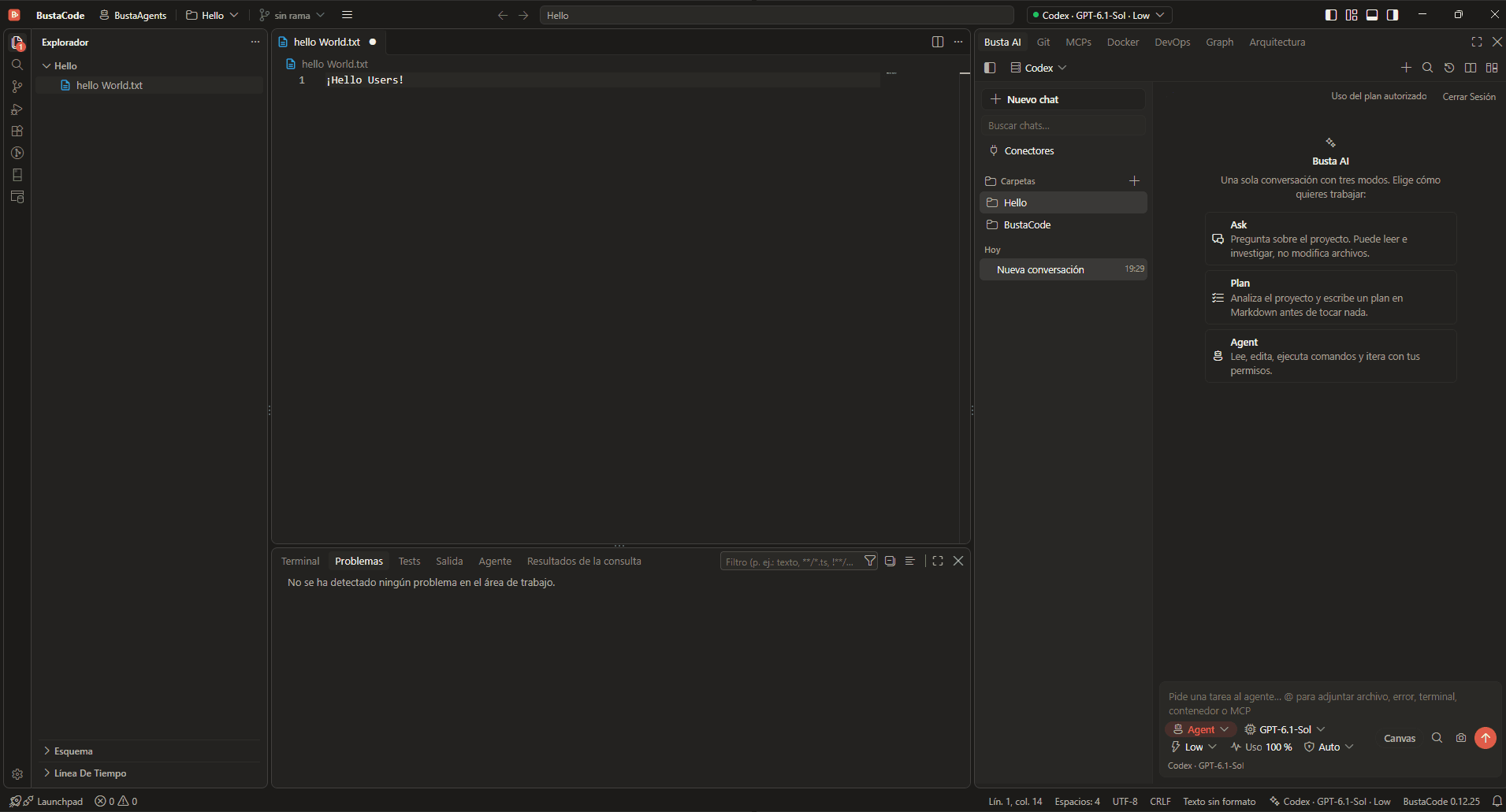
Docker containers and logs
- Explore containers and their logs from the Docker tab of the side panel.
- Attach a container to a BustaAI request with @ in the composer.

Linux hosts over SSH
The DevOps tab inspects Linux hosts over SSH and shows:
- CPU
- Memory
- Services
- Network ports
Part of the same workspace
- The full IDE keeps the integrated terminal and debugger from Code - OSS.
- BustaAgents has its own Terminal tab in the side panel, and v0.12.25 improved folder access and integrated terminal behavior there.
- v0.12.25 also fixed type-checking issues involving SSH folder selection and compilation issues affecting remote Codex process startup.
Good to know
The DevOps and Graph views are custom BustaCode interfaces. The project’s accessibility statement notes they may have accessibility issues even where upstream editor features are accessible; barriers can be reported through the bug report form with an “[Accessibility]” prefix.
Related features
All features- MCP, tools & extensions Project-level MCP through a local gateway with access controls, tool approvals, and Open VSX / VSIX extensions.
- Busta Graph & Architecture Code relationships, dependencies, API routes, models, DAOs and tables, plus architecture diagrams made with Archify.
- Git & worktrees Diffs, changes, branches, history, worktrees and pull-request workflows, in both the IDE and BustaAgents.
Get started
Try it in BustaCode
Free to download for Windows x64. Provider accounts, API keys, subscriptions and usage limits are separate.
v0.12.27 · Windows x64 · 188 MB installer · Changelog
- 1
Download the latest Windows installer.
- 2
Install BustaCode and open a project.
- 3
Open BustaAI, connect a supported provider and switch between BustaCode and BustaAgents.