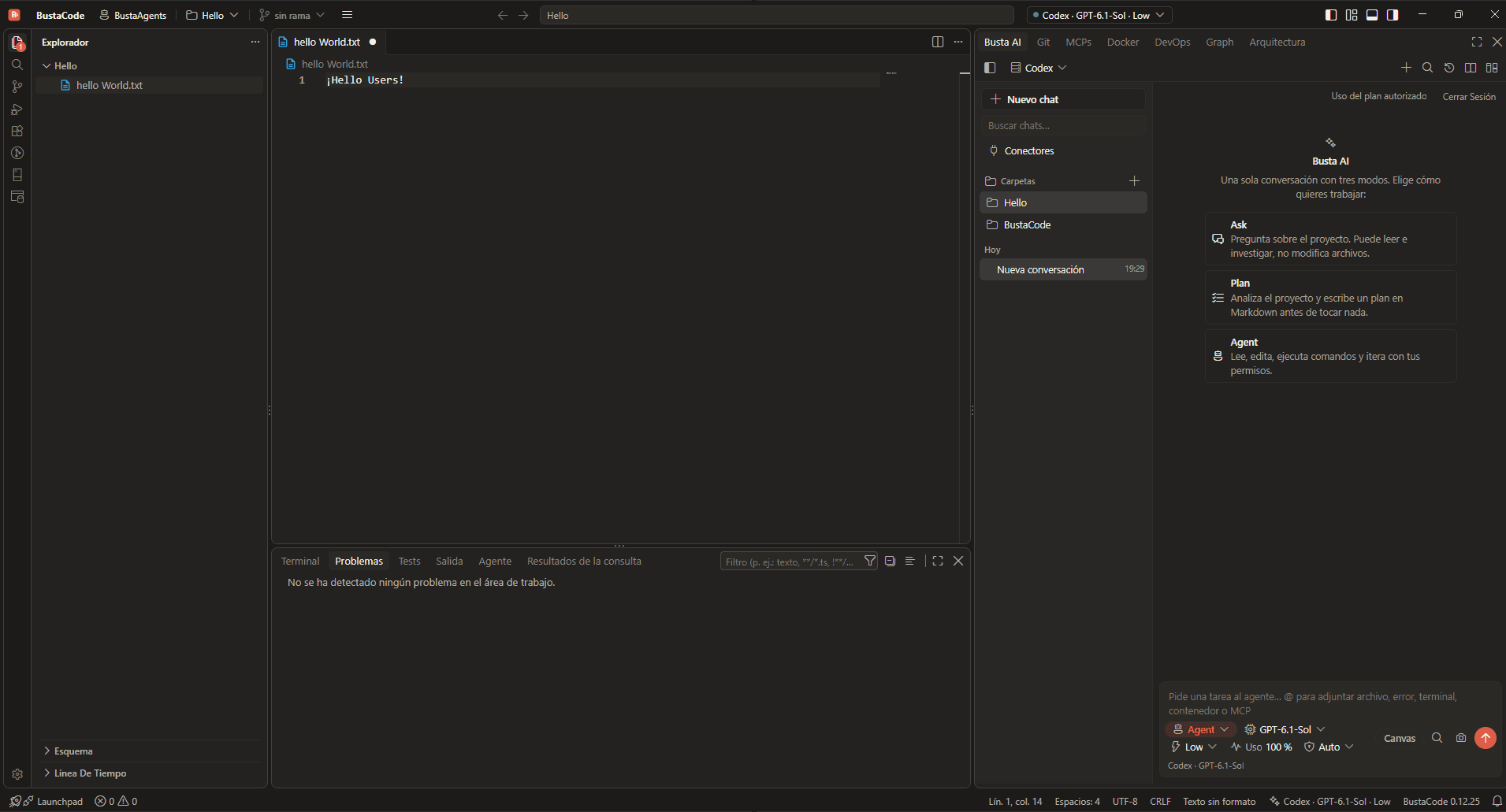
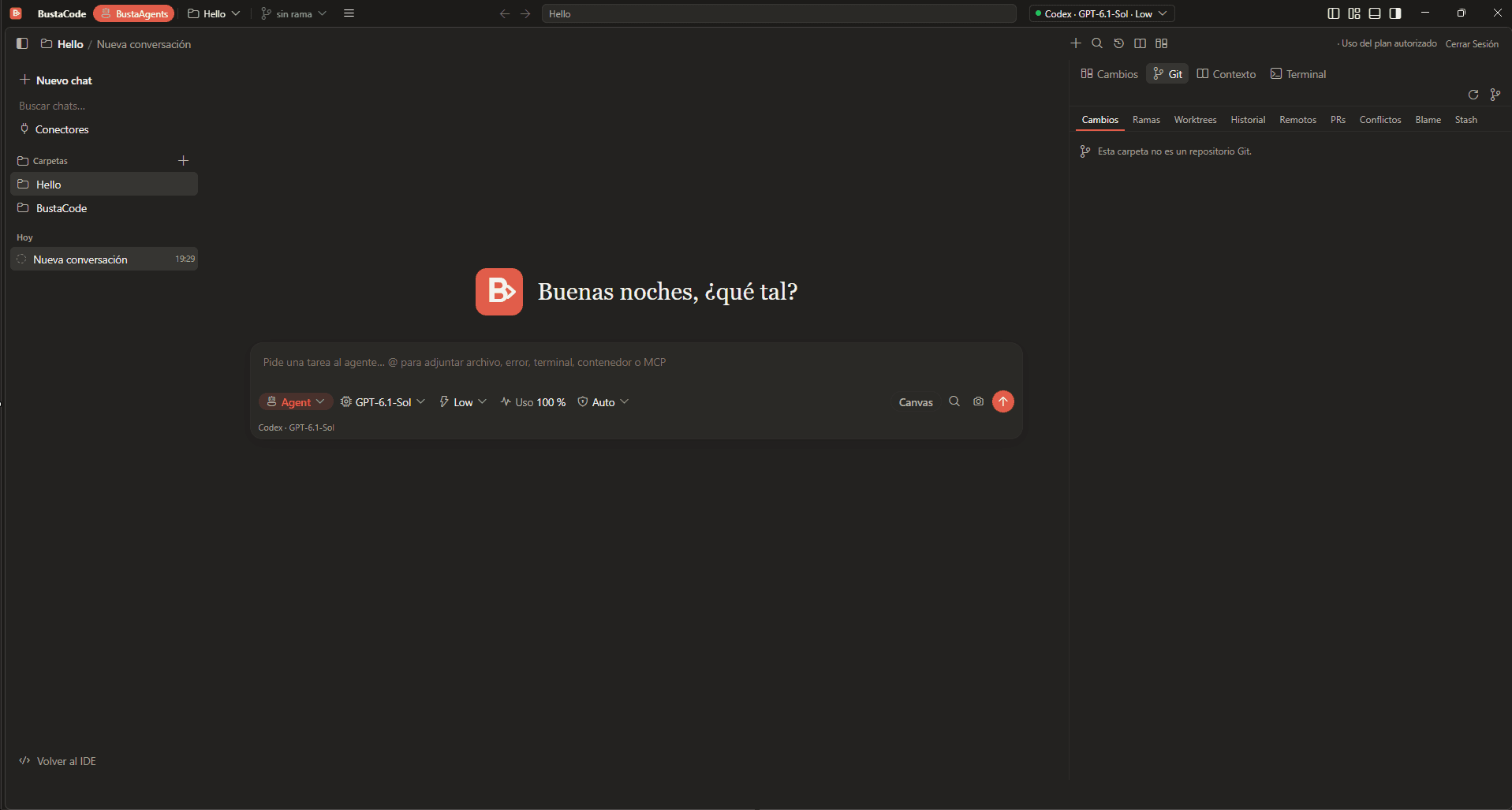
Project-level MCP integrations through a local gateway with access controls.
Docker & DevOps
Explore containers and logs, and inspect Linux hosts over SSH: CPU, memory, services and network ports.
ssh · linux-hostCPUMemoryServicesPorts
Busta Graph
Explore code relationships, dependencies, API routes, data models, DAOs and database tables.
Architecture
View project architecture diagrams created with agent assistance and Archify.
Extensions
Code - OSS extension compatibility with the Open VSX registry and manual VSIX installation.
Open VSX.vsixCode - OSS
Under the hood
Familiar foundations. Clear boundaries.
BustaCode is a desktop development environment built on Code - OSS. Here is exactly what that means for you.
Cursor · Codex · OpenAI API04
BustaAI — Ask · Plan · Agent03
BustaCode IDE ⇄ BustaAgents02
Code - OSS · Open VSX01
Built on Code - OSS
The MIT-licensed open-source foundation, with editor, terminal, debugger and extensions in one window.
Open VSX, not the Marketplace
The extension gallery is Open VSX, not Microsoft’s Visual Studio Marketplace. Some proprietary extensions may be unavailable; VSIX files install manually.
Your context, your provider
Project context and BustaAI’s local state are managed on your device. Relevant context is sent to the selected AI provider when you make a request.
Approvals where supported
Tool execution and permissions depend on the selected agent engine; BustaAI presents approval requests and activity information where supported.
Verified updates
The updater verifies release manifests and installer integrity using cryptographic signatures and checksums.
Get started
Up and running in three steps.
1
Download the latest Windows installer.
2
Install BustaCode and open a project.
3
Open BustaAI, connect a supported provider and switch between BustaCode and BustaAgents.
Latest release
Download BustaCode
Free to download for Windows x64. Provider accounts, API keys, subscriptions, usage limits and any provider charges are separate.
v0.12.25·Windows x64·188 MB installer·Released 26 October 2026
What’s new · v0.12.25
Improved the BustaAgents workspace and dock experience.
Made the IDE and BustaAgents modes share a consistent layout preference across folders.
Improved folder access and integrated terminal behavior in BustaAgents.
Refined Git selection restoration when switching layouts.
BustaCode’s source code is currently private. The public repository distributes installers and update manifests.
FAQ
Questions, answered.
Is BustaCode free?
Yes, the application installer is free to download. AI provider subscriptions, credits, APIs and usage limits are independent and may involve separate charges.
Is BustaCode open source?
It is based on MIT-licensed Code - OSS, but BustaCode’s complete source is currently private. The public repository contains releases and community documentation.
BustaCode vs. BustaAgents?
They are two modes of the same application. The IDE includes editor, debugger and terminal. BustaAgents hides the traditional editor layout so you can focus on agent conversations, tasks and changes, then switch back without losing your session.
Which operating system is supported?
The published installer is for Windows x64.
Which AI providers are available?
BustaAI integrates with Codex, the official Cursor CLI over ACP, and the OpenAI API. Model availability, account requirements and capabilities depend on the provider.
Can I install VS Code extensions?
BustaCode uses Open VSX and can install supported VSIX files. It does not use the Microsoft Visual Studio Marketplace, so proprietary Microsoft-only extensions may be unavailable.
Does BustaCode send my code to its servers?
Project context is maintained locally by BustaCode, but the relevant context and instructions are sent to the selected AI provider when you make a request. Your provider’s policies also apply.
How do I update?
Use BustaCode’s built-in update system or download from the official releases page. Installers and manifests are verified by the application’s update workflow.
Where do I ask for help?
Use the issue templates on GitHub to report a bug, ask a question or suggest a feature. For security issues, follow the security policy and report privately.
Community
Feedback goes straight to the repo.
Search before posting, reproduce on the latest version where possible, and remove secrets or private information from attachments.